

MacBrightness
MacBrightness lets you boost your Mac screen past its default limit to 1,600 nits for clear visibility in direct sunlight.
About MacBrightness
MacBrightness is a specialized utility application designed for MacBook Pro users and Pro Display XDR owners who need significantly more screen brightness than macOS natively provides. The software unlocks the hidden HDR brightness range that Apple reserves exclusively for HDR video content, making it available system-wide across every application. This means your MacBook Pro 14-inch or 16-inch with an M-series Pro or Max chip can achieve up to 1,600 nits of sustained brightness, effectively doubling the maximum brightness you can normally access through standard macOS controls. The product is built for professionals, travelers, remote workers, and anyone who frequently uses their Mac in bright environments like sunny patios, airport gates, or next to large windows. Instead of requiring complicated settings adjustments or third-party hardware, MacBrightness works with the existing brightness keys on your keyboard, allowing you to simply press up past the old limit to access the full brightness range. The software operates with no noticeable CPU overhead and no low-level system hacks, making it safe and efficient for daily use. It offers a free Splitscreen Mode where one half of your screen runs at full brightness so you can see the difference immediately, with a one-time purchase unlocking the full screen. There are no subscriptions, no accounts required, and setup takes approximately thirty seconds from download to full functionality.
Features of MacBrightness
System-Wide Brightness Boost
MacBrightness unlocks the full HDR brightness capability of your MacBook Pro display and applies it to every application, not just HDR video content. While macOS typically caps standard SDR brightness at around 500 nits and reserves the full 1,600 nits for HDR video playback only, this software removes that restriction entirely. Whether you are working in a text editor, browsing the web, editing photos, or coding in an IDE, every pixel on your screen can access the complete brightness range. This system-wide implementation ensures that no matter what task you are performing, your display remains readable and vibrant in challenging lighting conditions.
Native Keyboard Integration
The software integrates seamlessly with the brightness keys you already use on your MacBook Pro keyboard. There are no new shortcuts to memorize, no menu bar icons to click, and no additional controls to learn. Simply press the brightness up key past the point where macOS would normally stop, and the screen continues to get brighter. This intuitive design means you can adjust brightness on the fly without interrupting your workflow or hunting for obscure settings. The extended range feels natural because it uses the same physical controls you have been using since day one.
Zero Performance Overhead
MacBrightness operates with no noticeable CPU overhead and employs no low-level system hacks to achieve its results. The software simply opens the brightness range that your display already supports for HDR content, making it available for standard use. This means your MacBook Pro continues to run at full performance for demanding tasks like video editing, 3D rendering, or software compilation without any degradation. Battery life remains unaffected because the display hardware is already capable of this brightness level; MacBrightness simply changes which software can access it.
Free Splitscreen Trial Mode
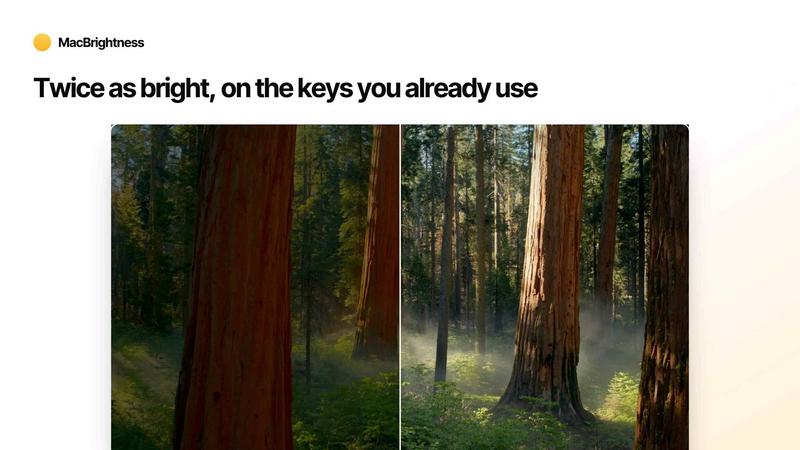
The product includes a generous free trial that does not expire. When you first launch MacBrightness, it opens in Splitscreen Mode where one half of your screen jumps to full brightness while the other half remains at the standard macOS limit. This side-by-side comparison lets you see exactly how much brighter your display can become before making any purchase decision. The Splitscreen Mode remains free indefinitely, giving you unlimited time to evaluate the difference. When you purchase a one-time license, the full brightness extends across your entire screen in every application.
Use Cases of MacBrightness
Outdoor Work and Remote Productivity
For professionals who work from outdoor locations like café patios, park benches, or rooftop terraces, MacBrightness transforms an unusable screen into a fully readable display. Direct sunlight typically turns a standard MacBook Pro screen into a reflective mirror, making text illegible and colors washed out. With the extra brightness range unlocked, you can comfortably read emails, edit documents, participate in video calls, and manage projects from any outdoor setting. This is particularly valuable for digital nomads, traveling consultants, and remote workers who choose their workspace based on atmosphere rather than shade availability.
Travel and Airport Productivity
Frequent travelers often find themselves working from airport gates, airplane seats, or hotel rooms with bright windows. The ambient light in these environments can make standard screen brightness insufficient for comfortable reading. MacBrightness ensures your screen remains visible whether you are reviewing presentation slides before a meeting, catching up on reports during a layover, or finishing a proposal on the tarmac. The extra brightness helps reduce eye strain and allows you to maintain productivity even in the most brightly lit travel environments.
Creative Professional Work in Variable Lighting
Photographers, videographers, graphic designers, and other creative professionals often need to review their work in different lighting conditions. When you step outside with your MacBook Pro to check how a photo looks in natural light, the standard brightness cap can make it impossible to accurately judge colors and exposure. MacBrightness gives you the full panel brightness so you can evaluate your creative work in any environment. This is especially useful for location scouts, on-set photographers, and outdoor portrait sessions where accurate screen visibility is critical.
Indoor Work Near Bright Windows
Many professionals prefer working near windows for natural light and views, but this creates a constant battle with screen glare and reflection. If your desk is positioned next to a large window or glass wall, the ambient light can wash out your display even indoors. MacBrightness provides the extra brightness needed to overcome this glare without having to close blinds or reposition your workspace. This allows you to maintain your preferred office setup while keeping your screen fully readable throughout the day.
Frequently Asked Questions
Which Mac models are compatible with MacBrightness?
MacBrightness works with MacBook Pro 14-inch and 16-inch models that feature M-series Pro or Max chips, as well as the Pro Display XDR. These devices use mini-LED display panels that are capable of sustaining approximately 1,600 nits of brightness. Other Mac models, including those with standard LCD or older display technology, do not have the hardware capability to support this extended brightness range and are not compatible with the software. You can check your Mac model by clicking the Apple menu and selecting About This Mac.
Does MacBrightness affect battery life or Mac performance?
No, MacBrightness operates with no noticeable CPU overhead and does not engage any low-level system hacks that could impact performance. The brightness range it unlocks is already supported by your display hardware for HDR content. Running your screen at higher brightness will use more battery power simply because the display backlight requires more energy to produce more light, but this is the same trade-off you experience when increasing brightness within the standard macOS range. The software itself consumes negligible system resources.
Is there a free trial, and how does it work?
Yes, MacBrightness offers a free trial that never expires. When you first download and launch the software, it opens in Splitscreen Mode. In this mode, one half of your screen runs at full brightness while the other half remains at the standard macOS brightness level. This allows you to see the difference side by side without any time limit. The Splitscreen Mode remains free for as long as you want to use it. To unlock full-screen brightness across every application, you purchase a one-time license with no subscription required.
How do I use MacBrightness after installation?
Using MacBrightness is straightforward. After downloading and opening the application, it automatically activates in Splitscreen Mode so you can see the difference. To use full brightness, simply press the brightness up key on your MacBook Pro keyboard. When you reach the point where macOS would normally stop increasing brightness, the screen continues to get brighter as MacBrightness takes over. There are no new shortcuts to learn, no menu bar icons to click, and no settings to configure. The entire process takes about thirty seconds from download to full functionality.
Pricing of MacBrightness
MacBrightness is available for a one-time purchase of $5 with no subscription fees or recurring charges. The product offers a free Splitscreen Mode that allows you to use half your screen at full brightness indefinitely without any cost. When you are ready for full-screen brightness across every application, a single payment unlocks the complete functionality. There are no account requirements, no personal information needed to download the trial, and no hidden fees. This straightforward pricing model ensures you pay once and own the software forever, with no ongoing costs or surprise charges.
Explore more in this category:
Similar to MacBrightness

tally counter
Online tally counter for tracking attendance, workouts, inventory, visitors, sports scores, habits, and everyday counting tasks.

iHatePosting
Create once, tailor for each platform, and schedule posts across 14 social networks from one simple dashboard.

PDFWix
PDFWix is a free online PDF toolkit designed to make everyday PDF tasks simple, fast, and private.

PDFKing
PDFKing is a free online PDF toolkit designed to make everyday document tasks simple, fast, and accessible. It brings essential PDF tools together in


OctoWatch DLP
Track staff & time. Free trial. Cloud/on-prem.

VideoToScript
Turn TikTok, Reels, Shorts, Facebook videos, audio, and video into accurate timestamped transcripts with TXT, SRT, and VTT exports.